Web Scraper
Configure Web Scraper for your Knowledge Base.
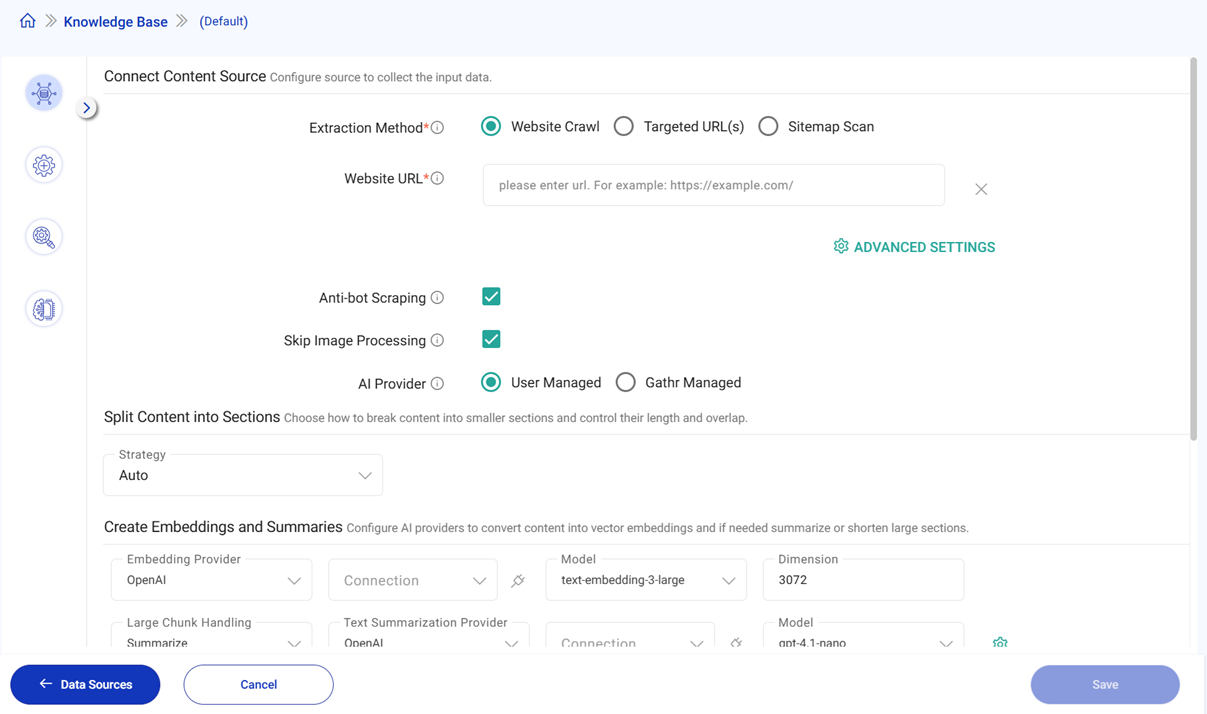
Extraction Method
Create or update knowledge base using one of the supported options.
Website Crawl: Extract data recursively from Website till the specified depth.
Targeted URL(s): Extract data from the specified Website URLs.
Sitemap Scan: Extract data from Website using sitemap.
Website URL
Enter the Website URL to generate knowledge base. A valid URL should be provided, for example: https://example.com.
Advanced Settings
Click on Advanced Settings to configure the additional options for the selected extraction method.
Sitemap Scan Advanced Settings
Fetch Sitemap: Choose how to fetch sitemap.xml from the Website URL. Selecting Runtime will fetch the sitemap at the time of knowledge base sync. Selecting Select/Upload will use the selected or uploaded sitemap.xml file.
This step is necessary to ensure the sitemap is up-to-date and includes all pages you want to extract from. Once you provide the preference, the sitemap will be fetched according to your selection and the extraction process will proceed.
Targeted URL(s) Advanced Settings
Add URL Via: Provided URL or Upload File
Targeted URL(s): Enter the Website URLs to generate knowledge base. A valid URL should be provided, for example: https://example.com.
Anti-bot Scraping: Enable to prevent the website from blocking your requests.
Skip Image Processing: Skip image processing to speed up the extraction process.
AI Provider: Select the AI provider to use for the extraction process.
Analyze Images
Configure an AI provider to extract information from images. This option is available if Skip Image Processing remains unchecked.
Provider: Select AI provider: OpenAI or Anthropic.
Connection: Select connection of AI provider. You can also create a new connection.
Model: Select Model.
Configuration: Option to provide configuration.
Additional Prompt: Add extra instructions to customize the summary’s style, tone, or focus. Use this to guide the AI on what aspects to emphasize or avoid. Example: “For technical readers,” “Make it brief,” or “Highlight key benefits.”
Stop sequences: Specify character sequences where text generation should stop to prevent overly long or irrelevant outputs. This helps keep summaries concise and on-point. Example: “(double new line), “Summary:”, or “–END–”
Split Content into Sections
Choose how to break content into smaller sections and control their length and overlap. Available options are: Auto and Recursive.
In case of Recursive provide Chunk Size and Chunk Overlap.
Create Embeddings and Summaries
Configure AI providers to convert content into vector embeddings and if needed summarize or shorten large sections.
Embedding Provider: Select the embedding provider: OpenAI or VoyageAI.
Connection: Select connection of AI provider. You can also create a new connection.
Model: Select Model.
Configuration: Option to provide configuration.
Store Processed Data
Configure storage location for embeddings and processed content.
Provider: Select AI provider: Pinecone.
Connection: Select connection of AI provider. You can also create a new connection.
Index: Provide Pinecone Index.
Namespace: Provide Namespace. Example: abc#v1#12#working.
Cluster Configuration
Configure cluster for the Knowledge Base.
- Application Deployment
Local Mode: Deploys the application on the Gathr server, it consumes Gathr server resources. It is not recommended for production environments.
Registered Cluster: Utilizes compute clusters from registered accounts in Gathr for application deployment.
It is recommended to use Registered Cluster option.
Runtime Account: Select the registered compute account for application deployment.
YARN Queue: Provide Yarn queue.
More Configurations
Option to provide further configuration details.
Driver Cores: Number of cores to be used for the driver processes.
Driver Memory: Amount of memory to use for the driver processes.
Executor Instances: If dynamic allocation is not enabled then enter value for executor instances.
Executor Cores: Number of cores to be used on each executor.
Executor Memory: Amount of memory to be used per executor process.
Extra Driver Java Options: A string of extra JVM options to pass to the driver. For instance, GC settings or other logging.
For example: -XX:+PrintGCDetails -XX:+PrintGCTimeStamps
Extra Executor Java Options: A string of extra JVM options to pass to executors. For instance, GC settings or other logging.
For example: -XX:+PrintGCDetails -XX:+PrintGCTimeStamps
Extra Spark Submit Options: The configuration provided in this field will be passed to Spark when the job is submitted.
If you have any feedback on Gathr documentation, please email us!