Python Virtual Environments
The Python Virtual Environments feature in Gathr allows you to create and store isolated Python environments within the application. These environments can be seamlessly utilized within Python processors when developing ETL applications, ensuring consistency in dependencies and package management.
This feature is available on a request basis. Please email Gathr Support to enable the Python Processor and Python Virtual Environments feature.
To create and manage Python virtual environments, navigate to the Environments page from the main menu.
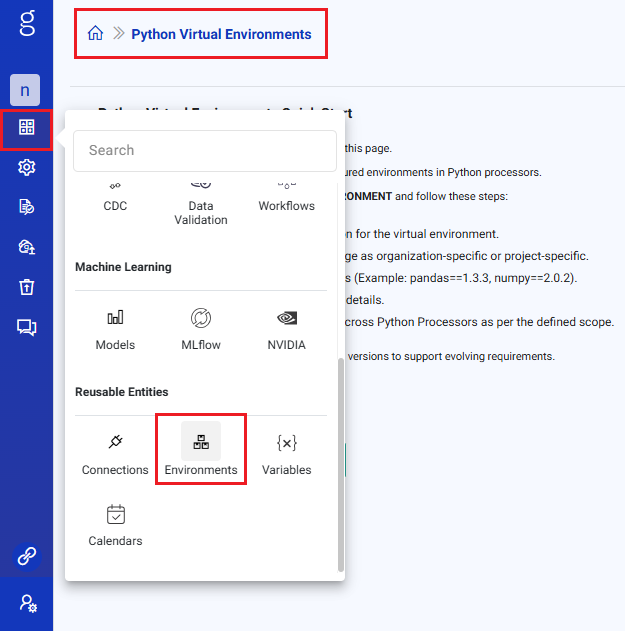
Any updates made to an environment, whether from the Environments page or during Python processor configuration are automatically synchronized across both sections.
Create Python Virtual Environment
Click the Create Python Virtual Environment button.
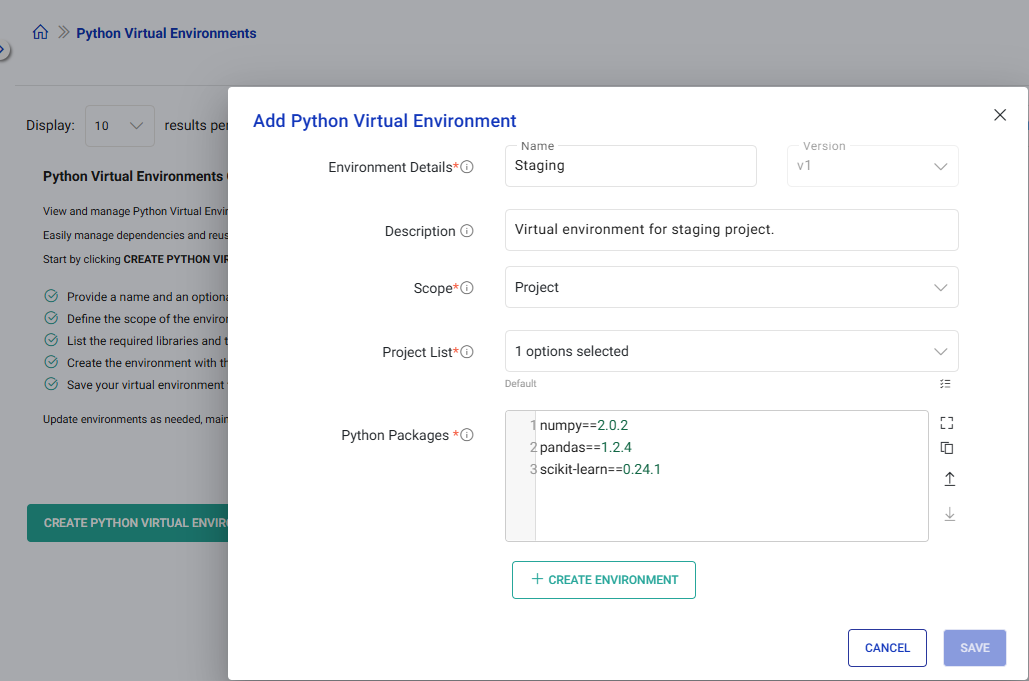
Enter an environment name to create a new environment, for example: Staging.
Ensure that the environment name is unique. A notification will be shown if a duplicate name exists.
Provide an optional description for the Python virtual environment.
Define the environment scope to customize their accessibility.
Project: Accessible to organization users limited to projects that are specified by the environment owner for usage in Python processor.
Organization: Accessible to organization users across all Gathr projects for usage in Python processor.
Enter Python package names separated by newlines or upload a package list. Download a sample package list for reference.
Click on Create Environment once the configuration fields are set.
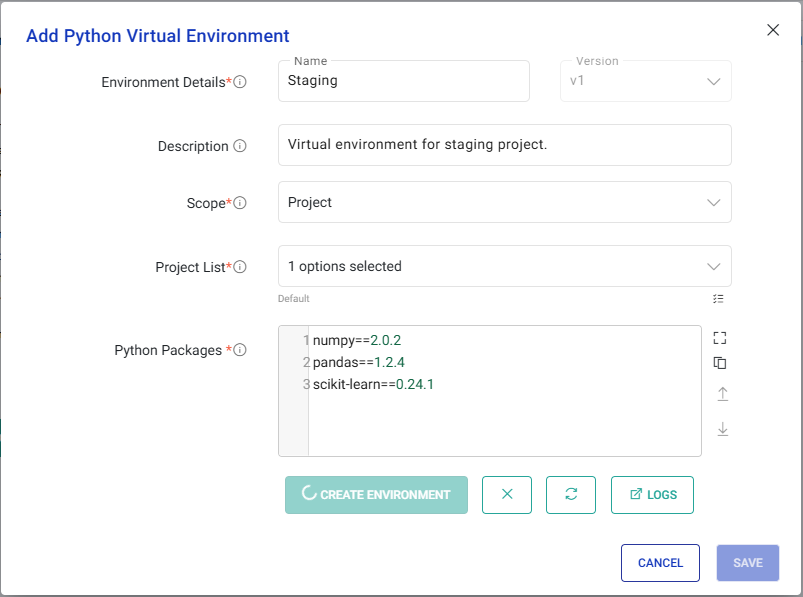
The creation of a Python virtual environment may take some time, depending on the selected packages. You can monitor its progress using the Get Status option.
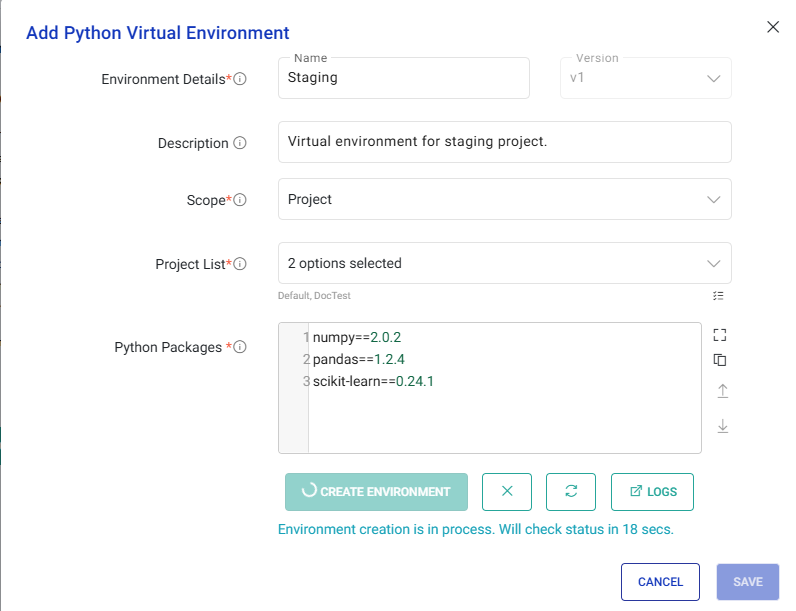
After the environment is successfully created, a confirmation message will be displayed.
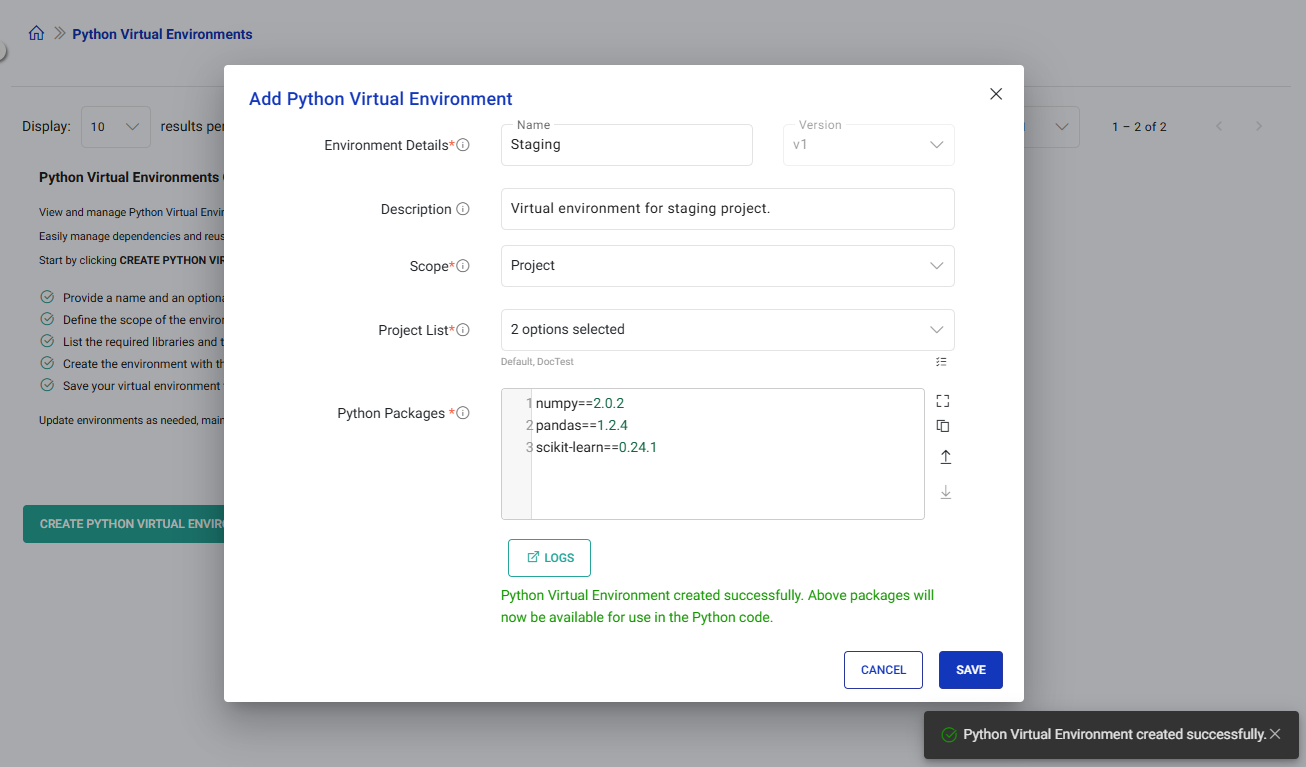
Important: Ensure that you SAVE the Python Virtual Environment to complete the creation process. Once saved, you will be redirected to the listing page.
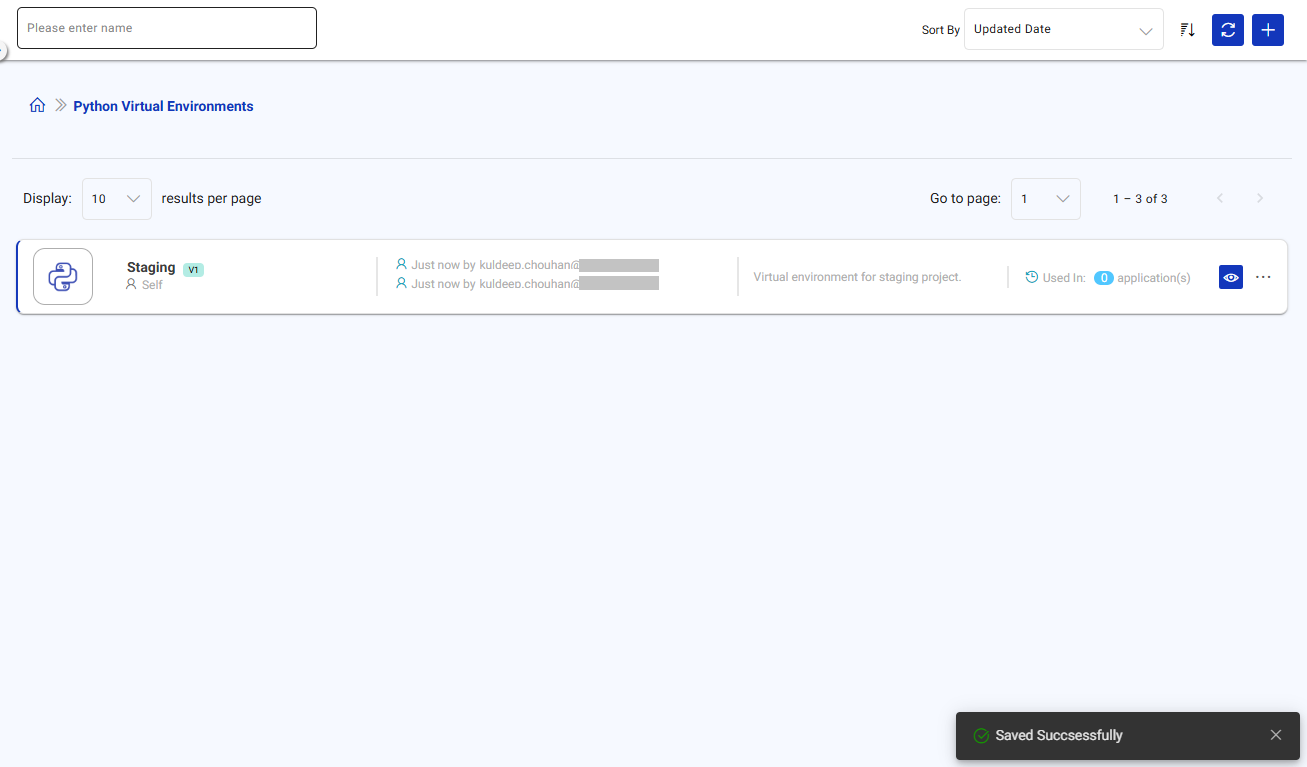
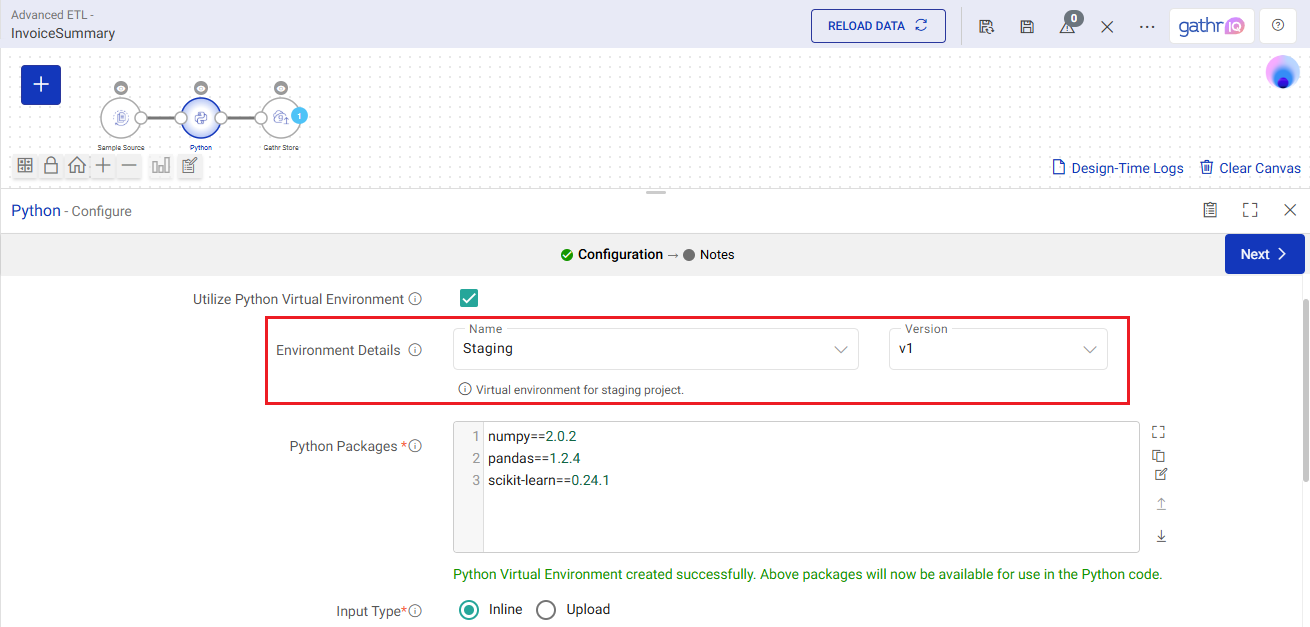
Users in projects within the defined scope of the created environment can utilize it in their Python processors.
Export Virtual Environment
You can export an existing virtual environment from Gathr application, including a complete list of installed packages.
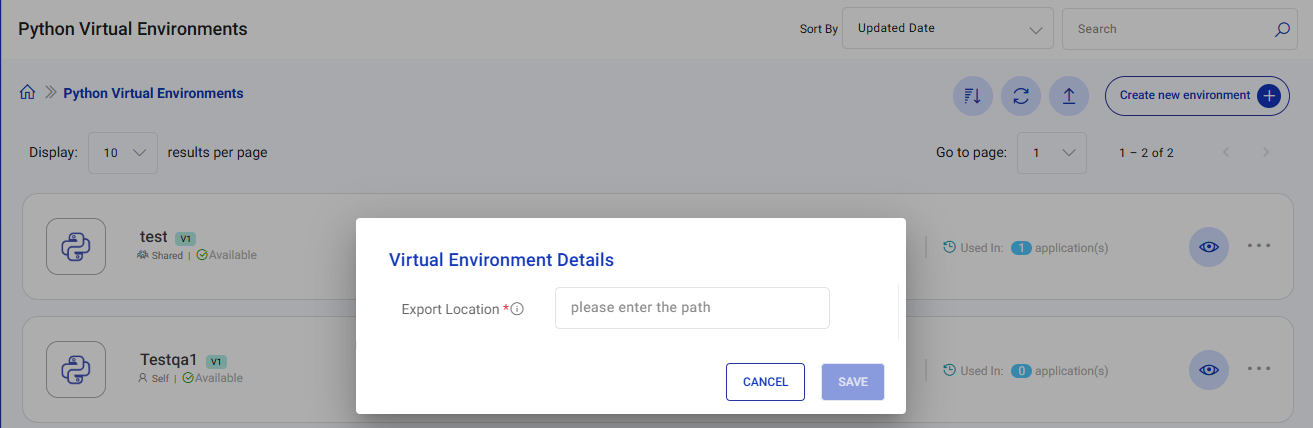
Enter the full path where the virtual environment should be saved. If a file or environment already exists at this location, it will be overwritten.
Example: mnt/nfs/python/environment/myEnv
The exported file will be in .zip format.
Import Python Virtual Environment
You can upload an existing Python virtual environment to import pre-configured environments for use within the Python processor.
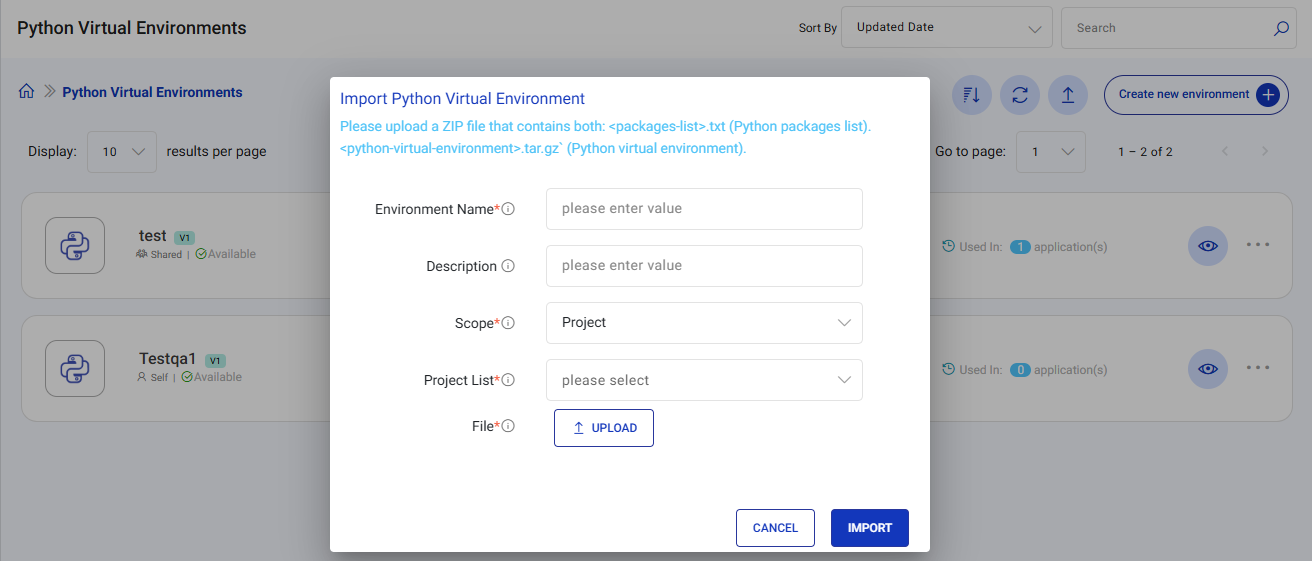
Click on Import Python Virtual Environment to import an existing Python virtual environment.
A configuration form will be displayed to import the Python virtual environment. Fill the form with the following details:
Environment Name: Enter an environment name to create a new environment.
Description: Provide an optional description for the Python virtual environment.
Scope: Define the environment scope to customize their accessibility.
Project: Accessible to organization users limited to projects that are specified by the environment owner for usage in Python processor.
Organization: Accessible to organization users across all Gathr projects for usage in Python processor.
Project List: Select the project in which environment can be accessed and used.
File: Upload a ZIP file containing the following artifacts:
package_details.txt: A text file listing Python packages (one per line) installed in the virtual environment.virtual_env.tar.gz: A compressed archive of the Python virtual environment.
Manage Python Virtual Environments
Manage Python virtual environments from the listing page, where you can:
Edit or Delete an environment
Download the Package List
View versions of the environment
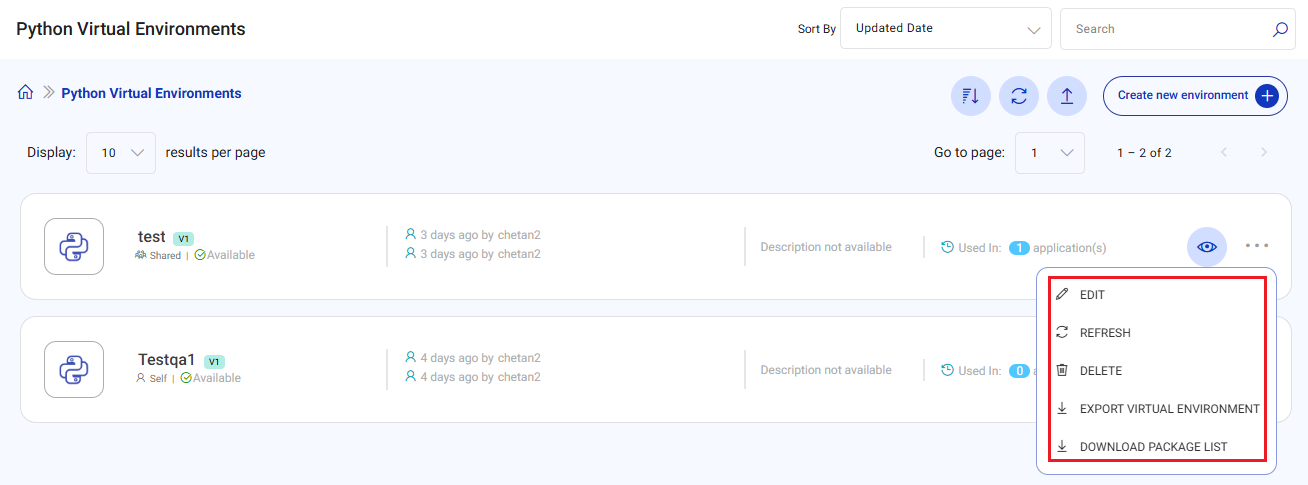
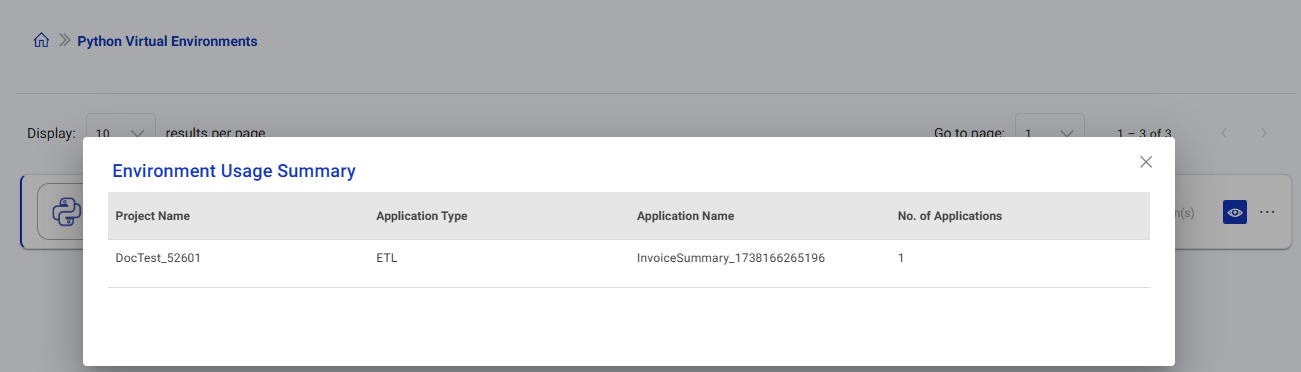
Check all details, including the list of ETL applications using the environment

Environment Usage Summary
Manage Python Virtual Environment Versions
When editing a Python virtual environment, you can either modify an existing version or create a new one. In both cases, a new environment must be created and saved as outlined in the Create Python Virtual Environment steps.
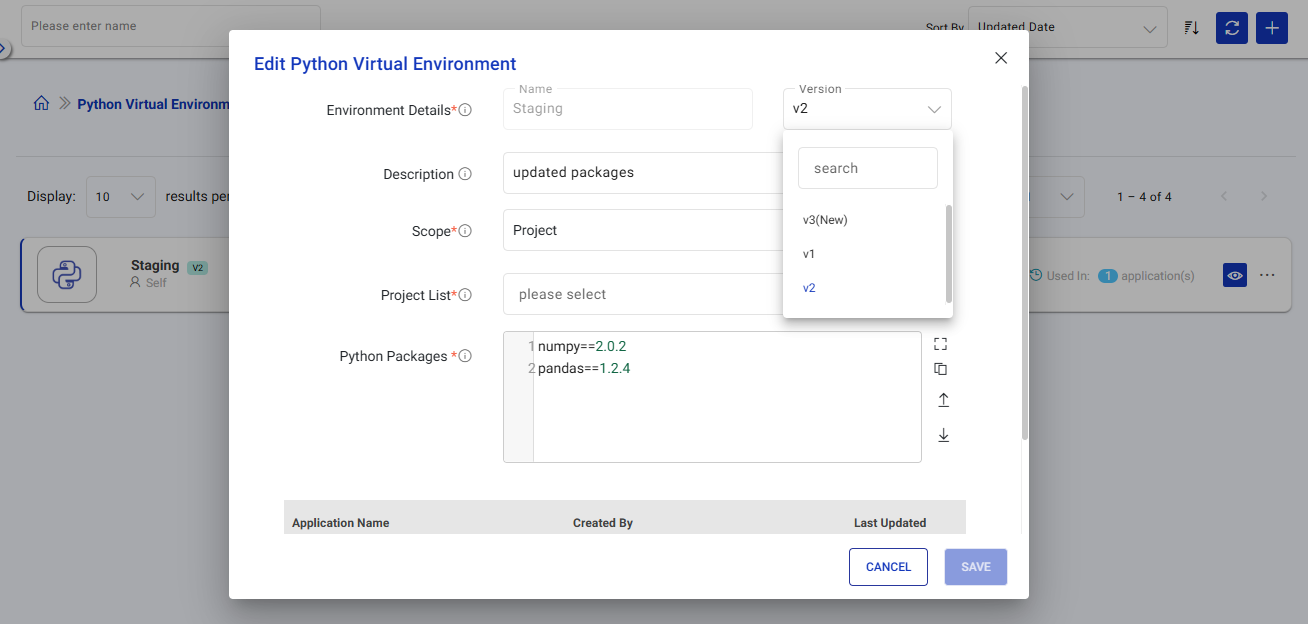
The new version will be displayed on the listing page.
If you have any feedback on Gathr documentation, please email us!