Version Control
Version Control in Gathr can be configured from Settings > Advanced section.
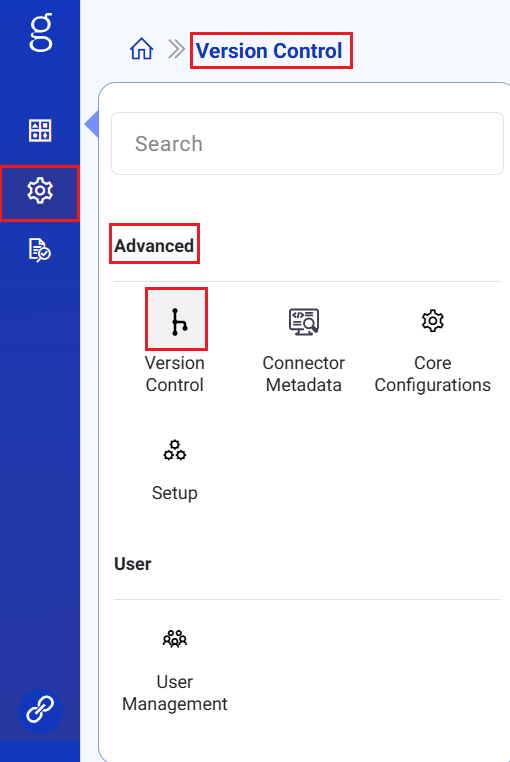
Login as Superuser
Manage version control settings across the organization from Version Control Management page. Under the Version Control page the Summary, Configuration and Repository tabs are available.
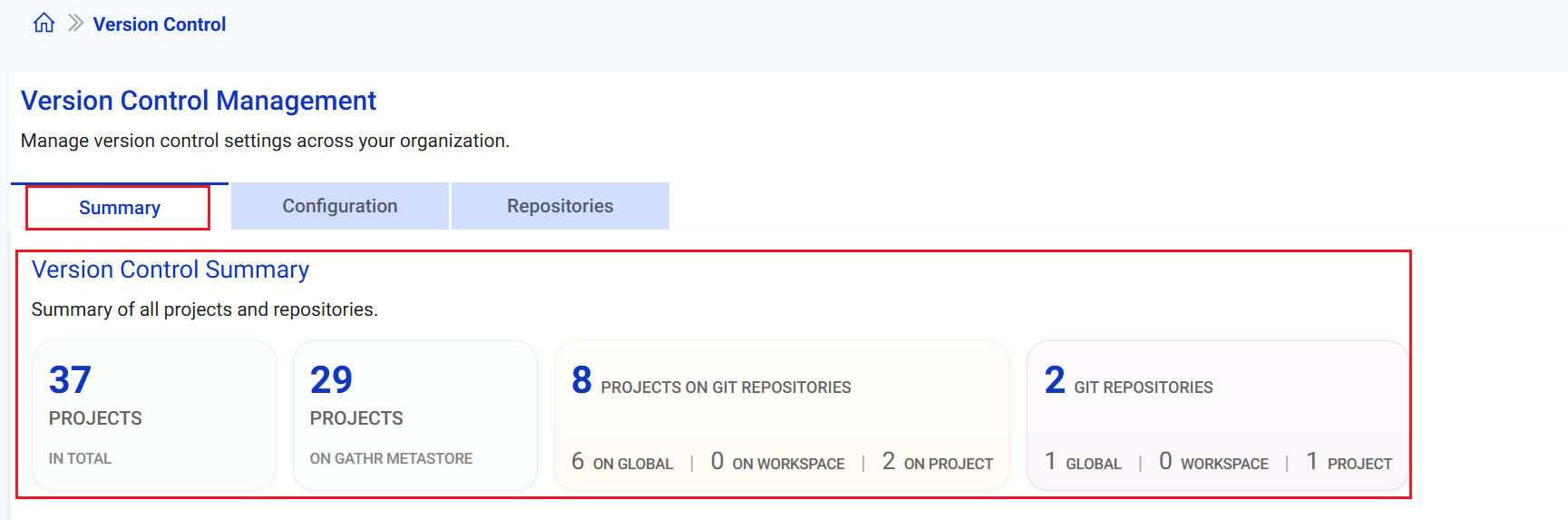
Summary
Under the summary tab the summary of all projects and repositories is available.
Configuration
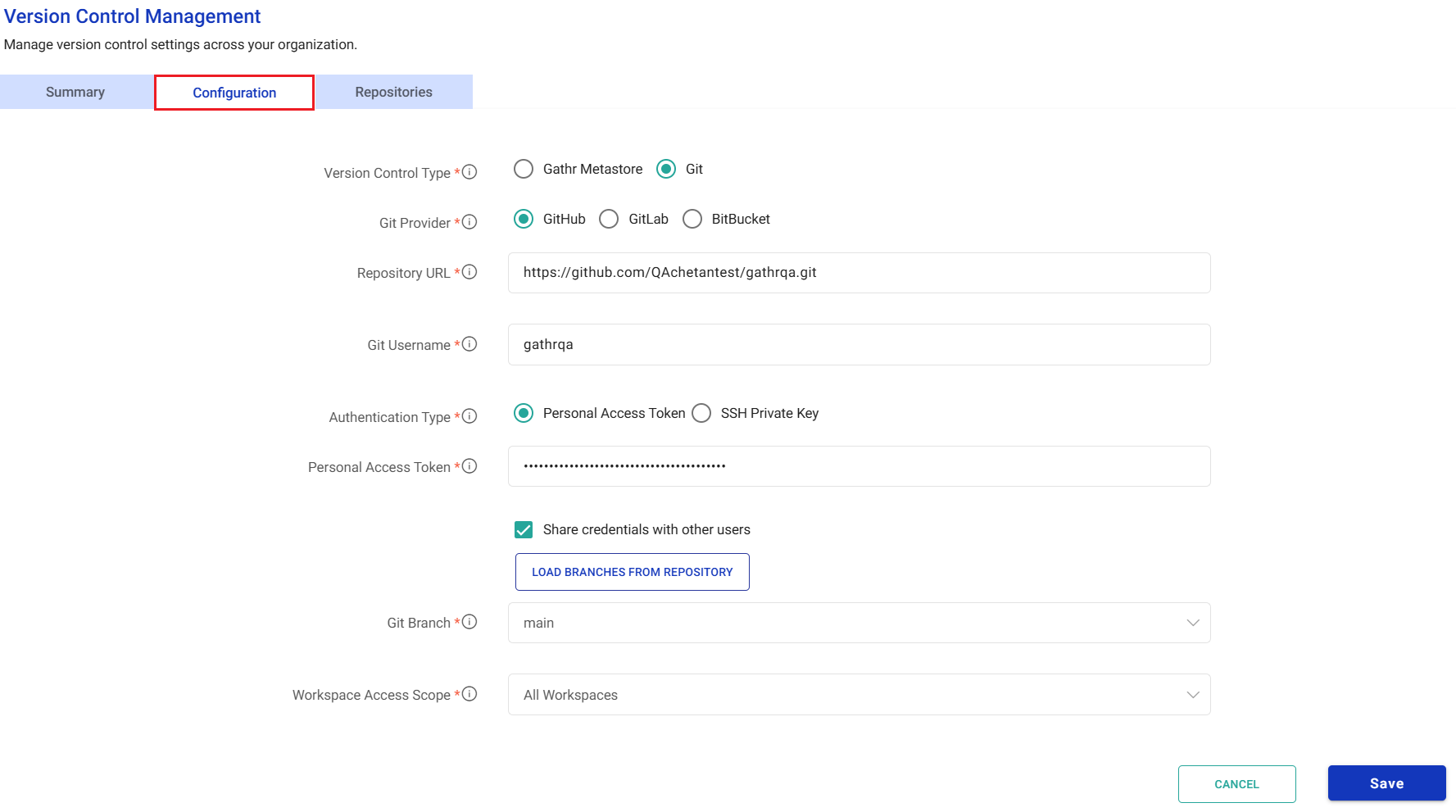
Provide the configuration details for version control.
Version Control Type
Select the type of system for version control. Available options are: Gathr Metastore and Git.
Git Provider
Select the Git host provider i.e, GitHub, GitLab, BitBucket.
Authentication Type
Method to authenticate Git repository. Available options are: Personal Access Token and SSH Key.
Token
If authentication type is selected as Personal Access Token, then provide the personal access token.
SSH Private Key
Provide SSH private key to authenticate credentials for repository.
In case of SSH, the repo URL should be in the format: git@github.com:Apeksha204/TestingNewFolder.git
Allow credential sharing with users
Select to allow global credential sharing with users. If unchecked, the user needs to provide their own credentials.
Branch
Git branch for version control.
Workspace Scope
Select the scope for using Git configuration. Available options are: All Workspaces and Specific Workspaces.
Select Workspaces
Select workspaces scoped for Git configuration.
Click Save to save the configurations.
Repositories
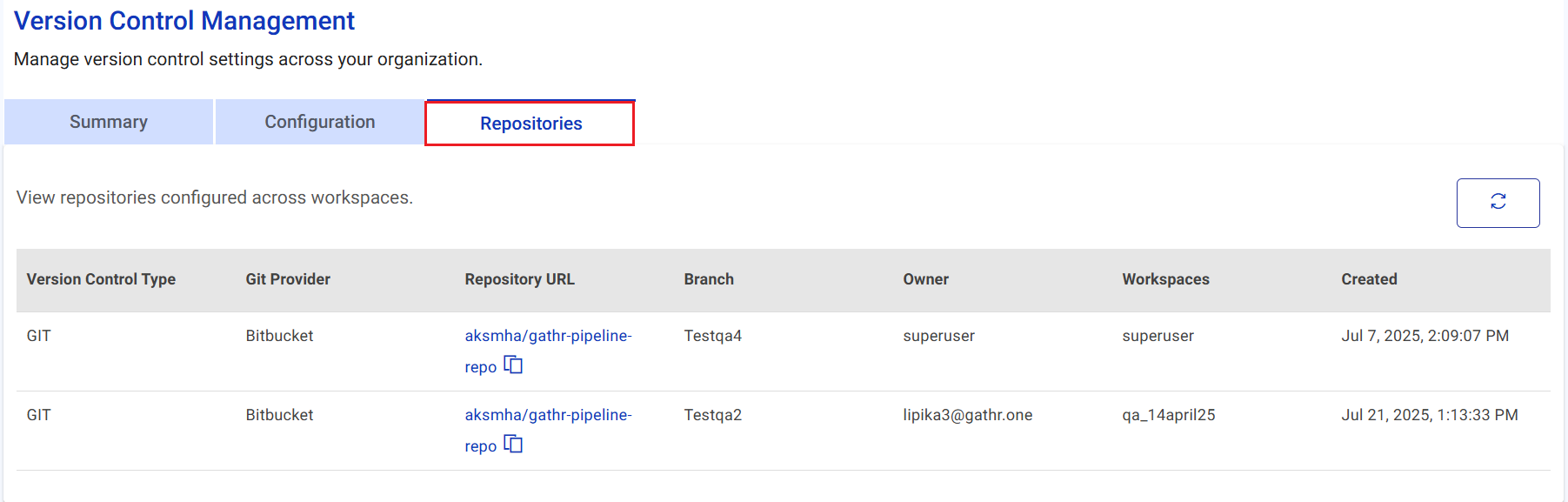
View repositories configured across workspaces.
Provide details for version control settings.
Version Control Type
Type of version control. i.e, GIT.
Git Provider
Git provider: GitHub, GitLab, BitBucket.
Repository URL
The Git Repository URL where configured details are saved. These Git repositories are mapped with Gathr.
Example: https://github.com/username/repo.git
Branch
The branch of Git repository.
Owner
The owner i.e., superuser/workspace user/developer.
Workspaces
The workspace where Git repository is saved.
Created
The date and time when the repository was created. Ex: Jul 7, 2025, 2:09:07 PM
Login as Workspace user
Manage version control settings across the organization.
Under this page the Summary, My Repositories and Repository Management, Untracked Changes, and Commits tabs are available.
Summary
Under the Version Control Summary, the summary of all projects and repositories are available.
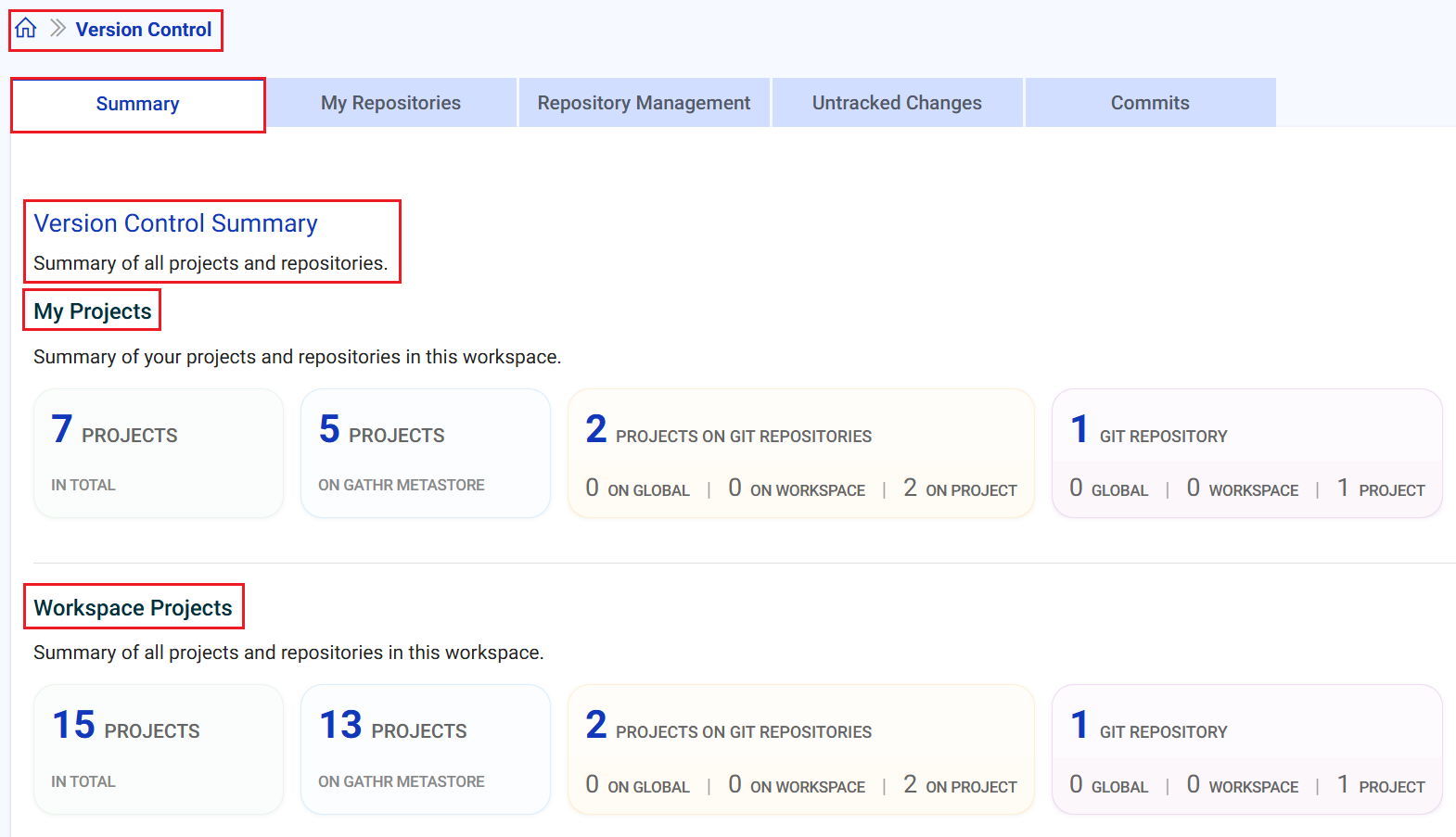
My Projects
Summary of your projects and repositories in this workspace.
Workspace Projects
Summary of all projects and repositories in this workspace.
My Repositories
Securely access and manage your own Git repository details.
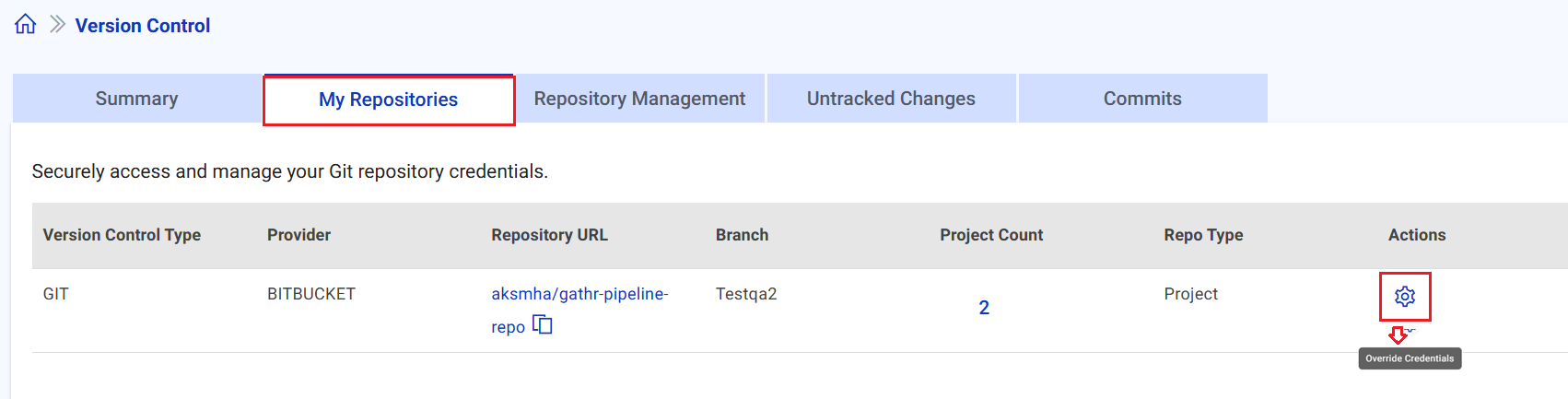
Override Credentials using the gear icon which is available under Actions.
You can use superuser’s credentials (if provided) or choose to enter your own credentials.
Version Control Type
Verson control type available are: Gathr Metastore or Git.
Provider
Provider is BitBucket/GitHub/Gitlab.
Repository URL
The Git Repository URL where configured details are saved. These Git repositories are mapped with Gathr.
Example: https://github.com/username/repo.git
Branch
The branch of Git repository.
Project Count
Number of projects associated with Git repo.
Repo Type
Type of repo: Workspace, Global, Project.
Actions
Option to override credentials by clicking on the gear icon.
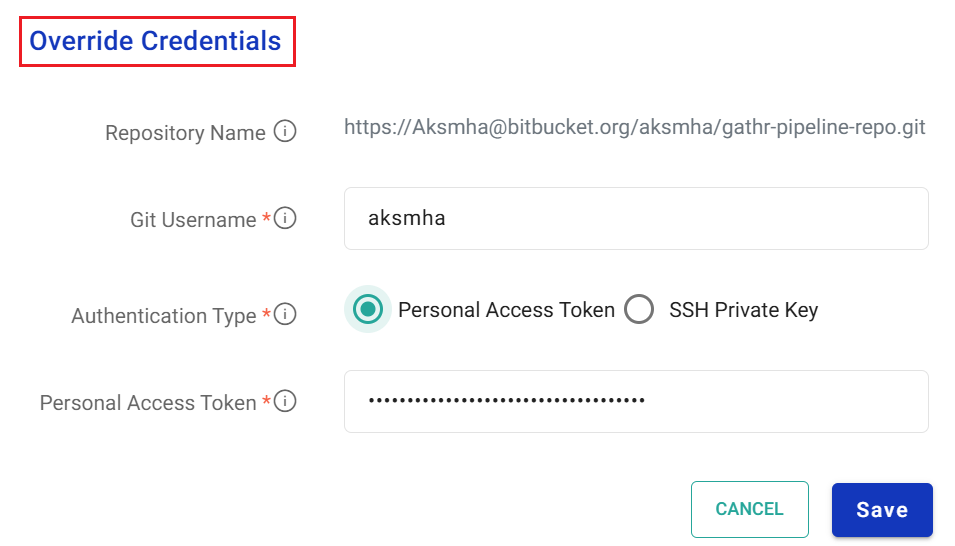
Override Credentials
Provide your credentials for repository.
Repository Name
The repository for which override credentials need to be done.
Git Username
Provide username to authenticate Git repository.
Authentication Type
Select a method to authenticate Git repository.
Personal Access Token
Provide the personal access token.
SSH Private Key
Provide SSH private key to authenticate credentials for repository.
In case of SSH, the repo URL should be in the format: git@github.com:Apeksha204/TestingNewFolder.git
Rollback permission of Version Control
The workspace Admin can give permission to access Version Control to a particular Workspace user/developer.
Under Setting > User Management > Users select Roles and set privilege under Workspace > Version Control.
Access to Create repositories, Create Tags, Delete repositories, Delete Tags, Edit can be provided.
For more details on User Management click here
Repository Management
Manage Global, Workspace and Project repository and settings.
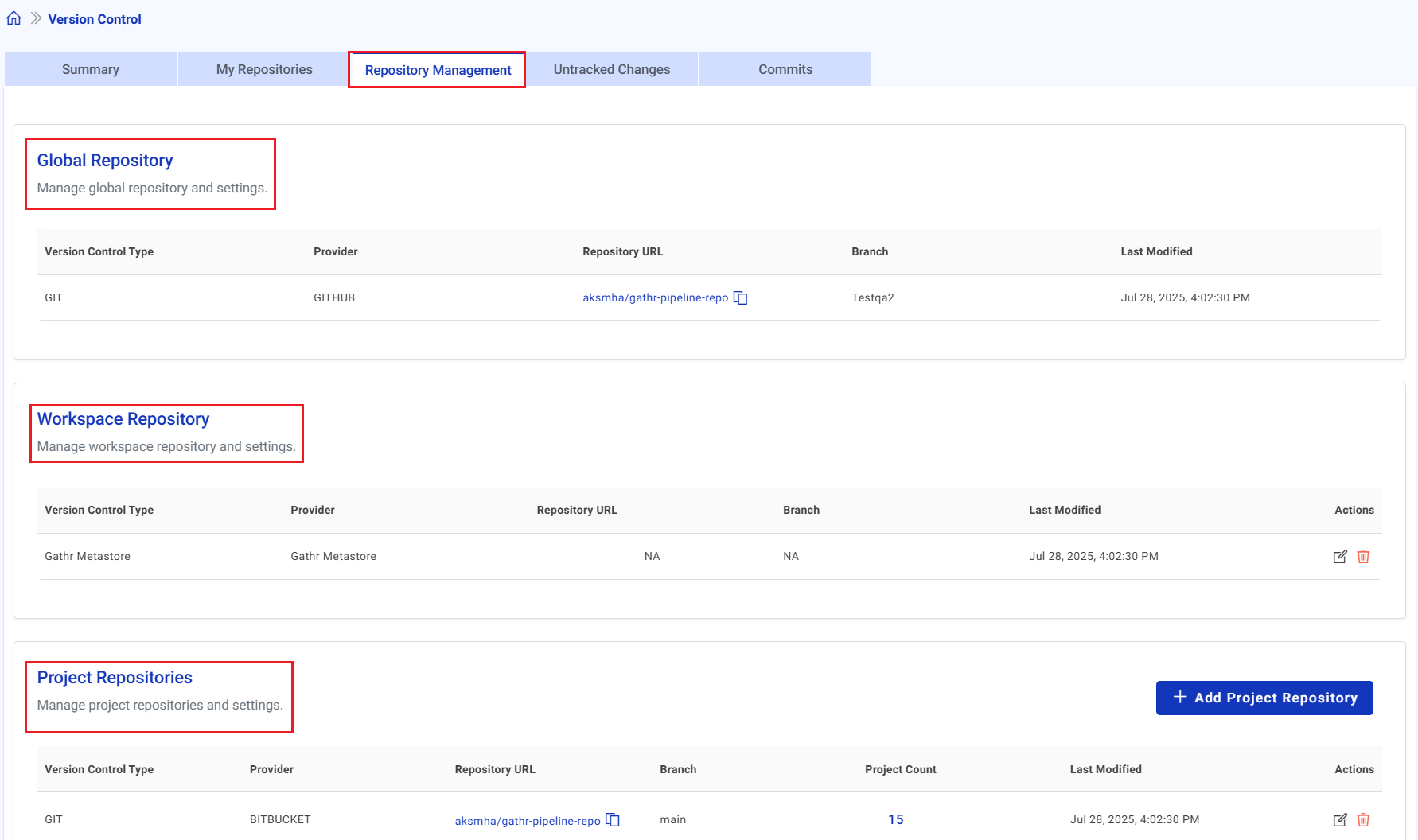
Global Repository
View global repository settings under this section.
Workspace Repository
Add workspace repository by either choosing Gathr Metastore or Git as Version Control Type. Provide details for version control settings.
Adding a new repository here will override the Global repository settings for this workspace.
Project Repository
Manage Project Repository and settings. Add project repository by either choosing Gathr Metastore or Git as Version Control Type. Adding a new repository here will override the Global or Workspace repository settings for the selected projects.
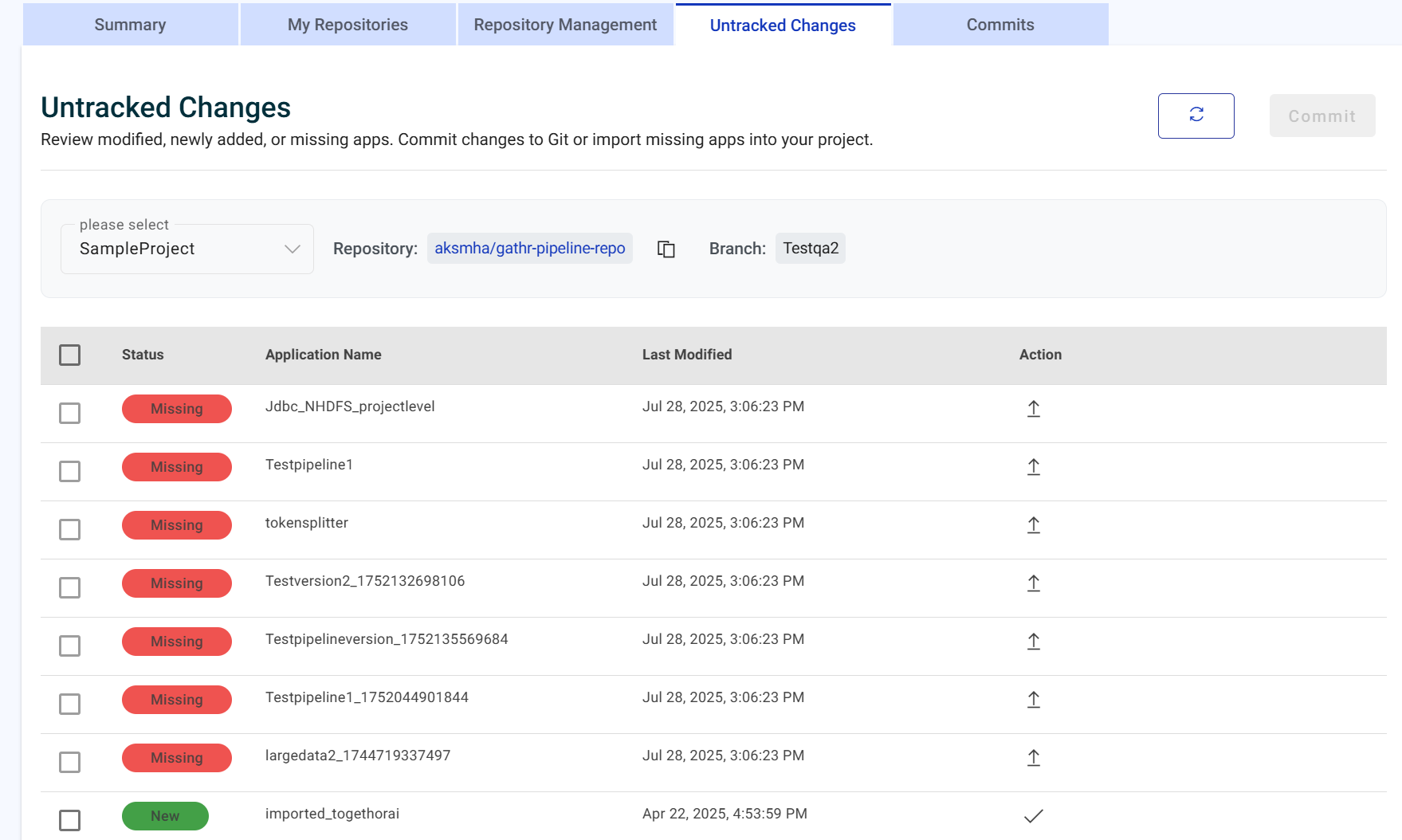
Untracked Changes
Review modified, newly added, or missing apps. Commit changes to Git or import missing apps into your project. This feature is only available with Git repositories.
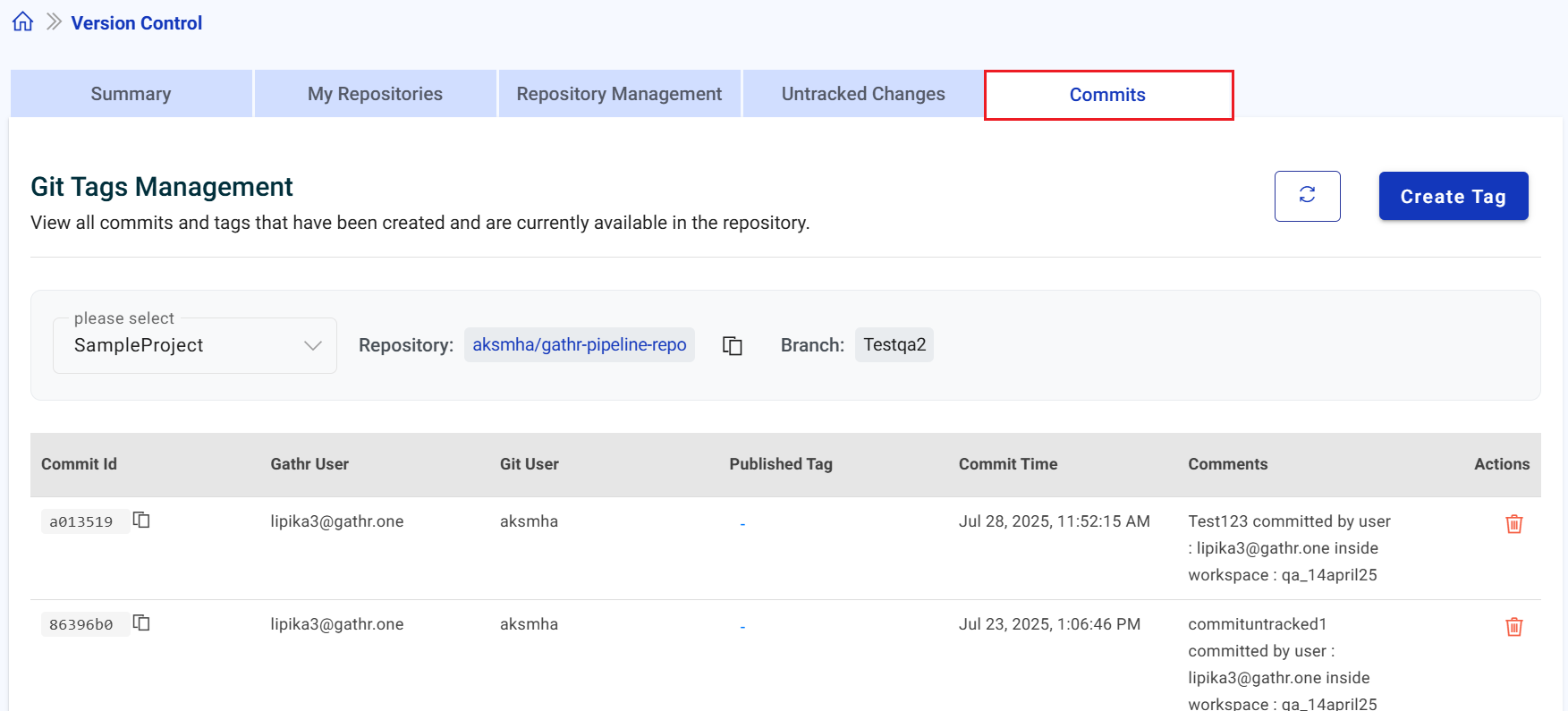
Commits
View all commits and associated tags that have been created and are currently available in the repository. You can add new tags in the Git repository. This feature is only available with Git repositories.
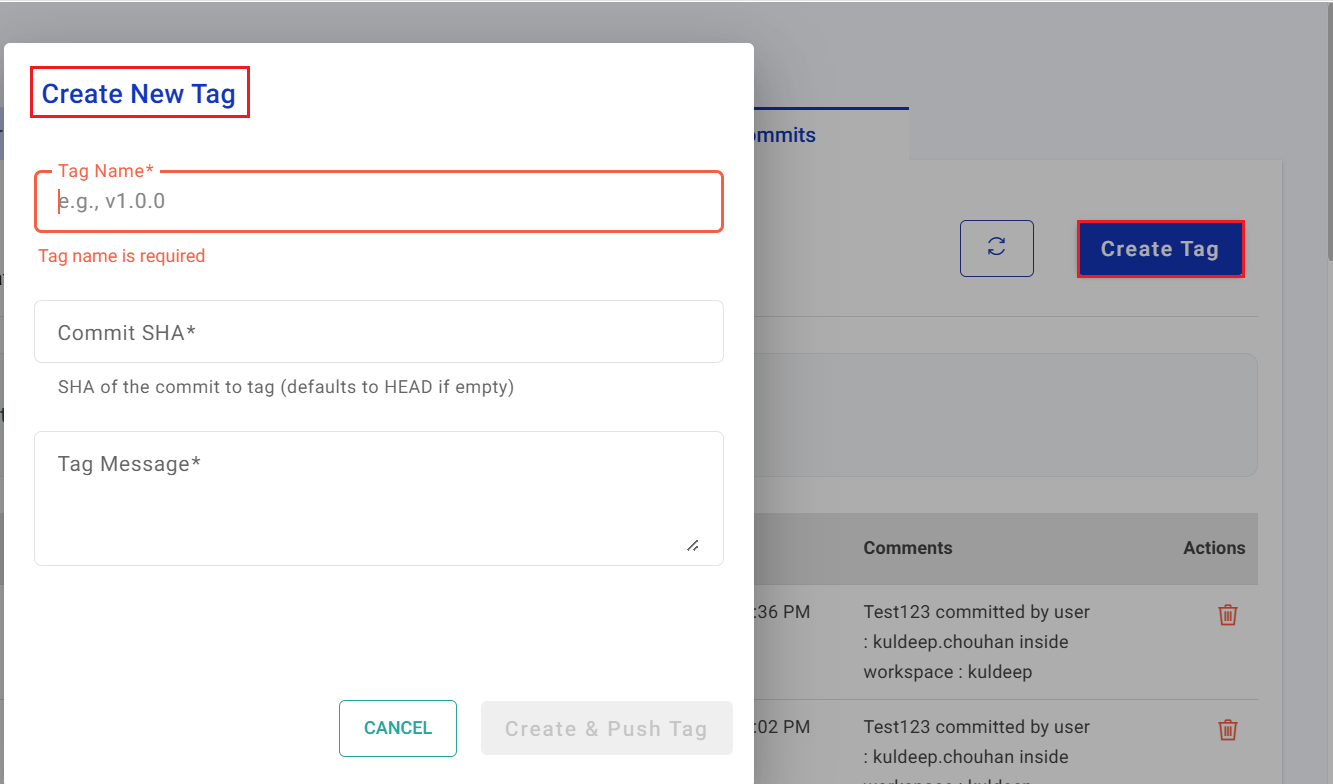
Create Tag
Click Create Tab button. Create new tag by providing the below details.
Tag Name
Provide a tag name. Ex: v1.0.0
Commit SHA
SHA of the commit to tag (defaults to HEAD if empty).
Tag Message
Provide a descriptive message for tag.
Click Create & Push Tag.
If you have any feedback on Gathr documentation, please email us!