Processor Group or pipeline sub-flow is a chain of transformations used in a single unit that can be reused in different pipeline(s) as component(s).
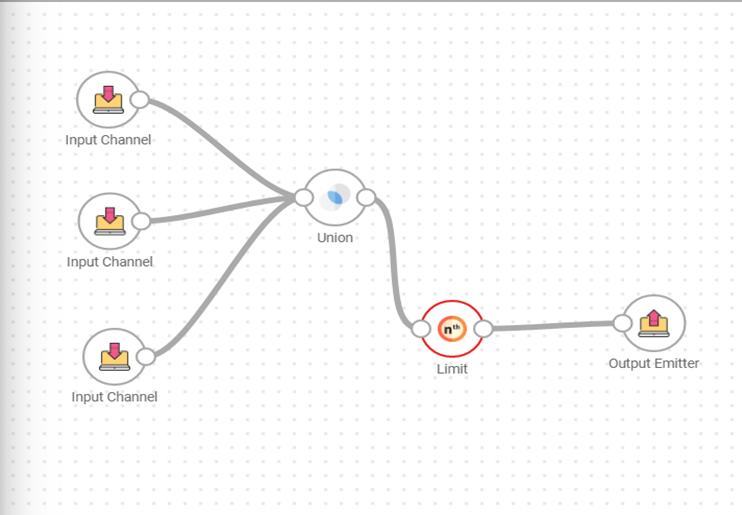
Example: In certain business scenarios user may want to re-use a set of processor(s) combination(s) like union and limit processors (as show in the below image) in several pipelines. The processor group thus eliminates redundancy of selecting every single processor repeatedly; thus, reducing the pipeline creation time.
Steps to create a Processor Group
To enter the Processor Group listing page; select Processor Group from the left navigation pane of StreamAnalytix dashboard.
To create a new processor group, click the + icon at the top right side of the screen.

You will land at the processor group canvas page.
To create a new processor group, select the input channel(s), choose transformation(s), select the output emitter.
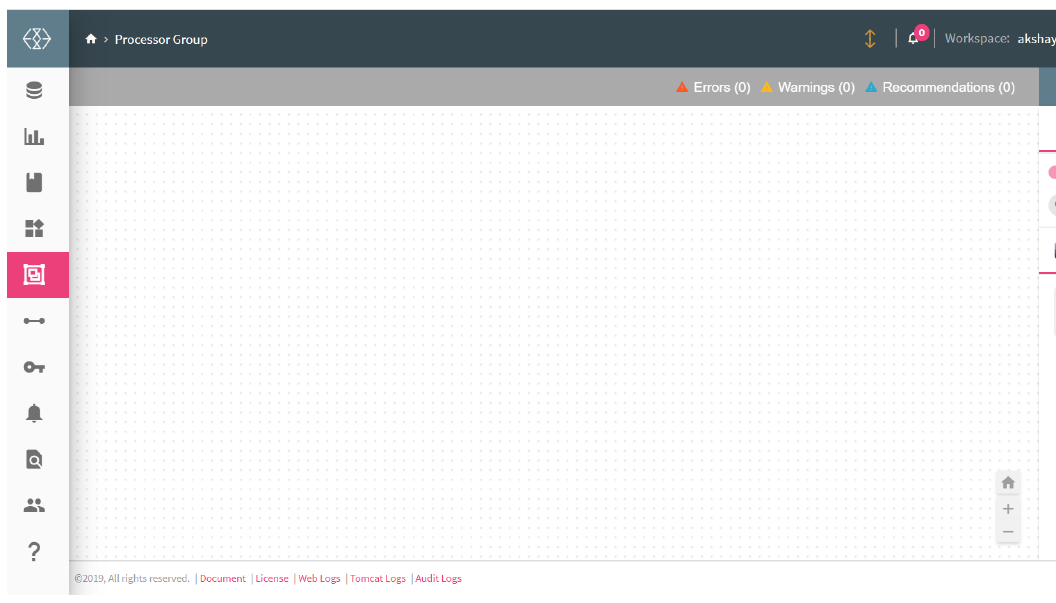
Steps to create a processor group:
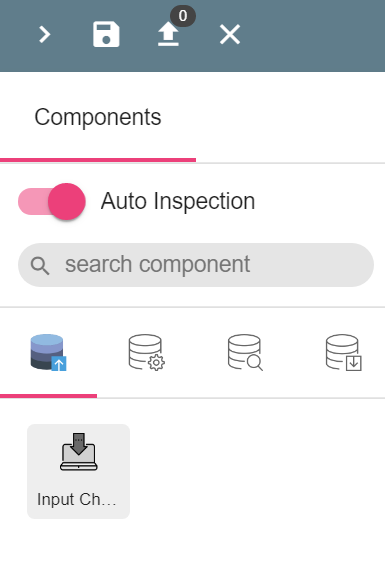
1. Select input channel and configure it
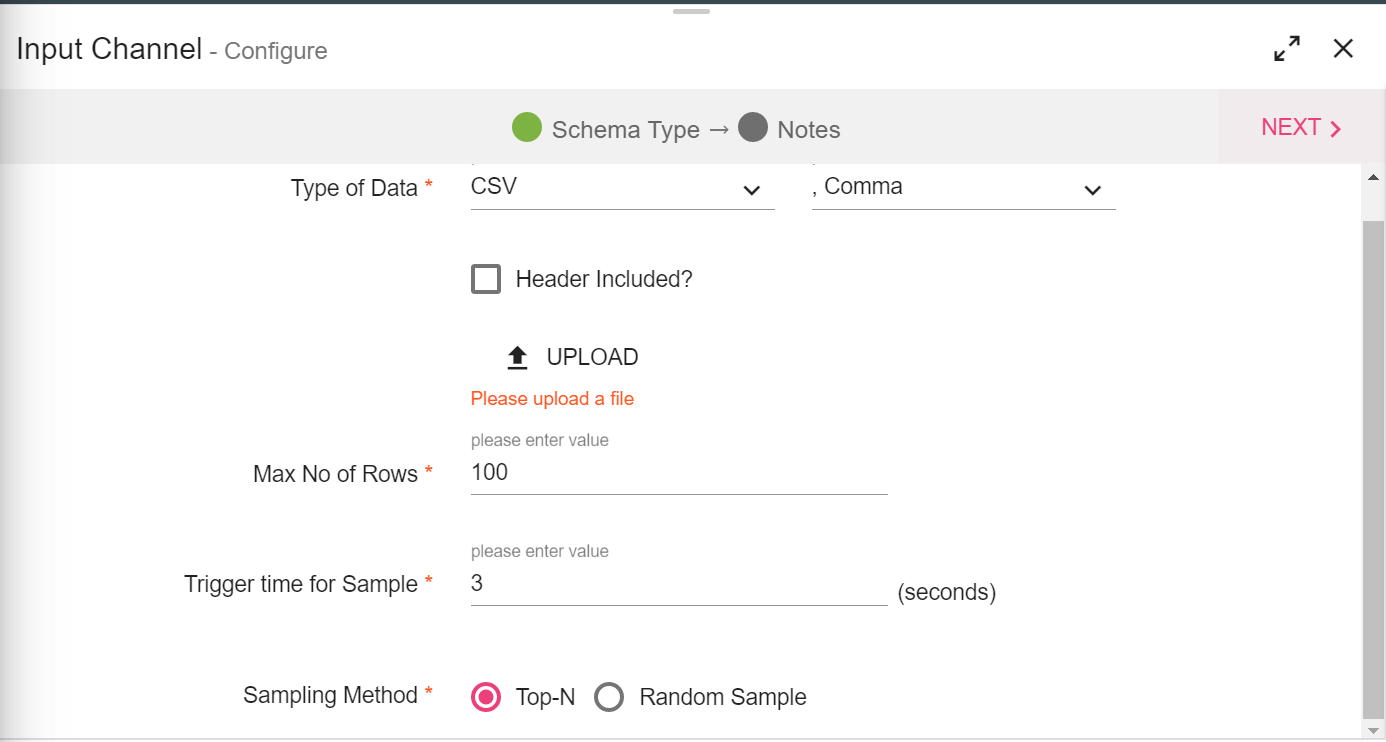
If your data contains header, check mark the header included option and upload the data file. Click Next to detect schema. Save notes, if required and click Next.
2. Select processor(s) from the Processors/Analytics tab under components panel and configure it.
3. Select an output emitter.
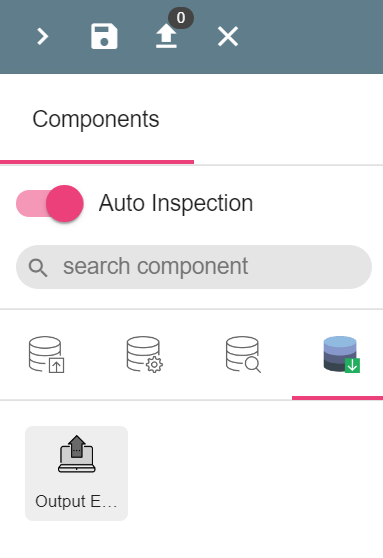
Save your processor group.
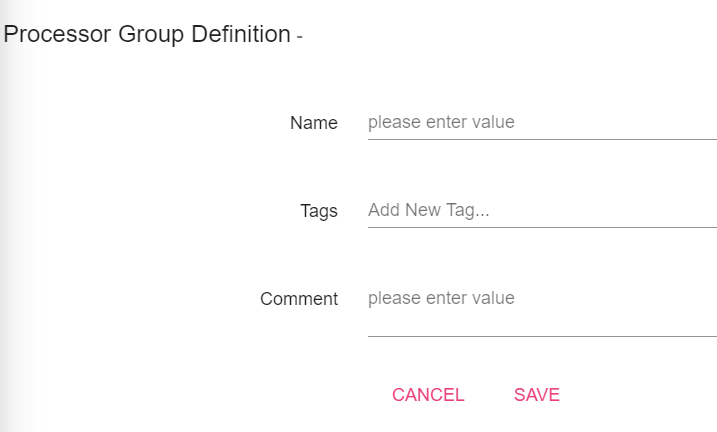
|
Field |
Description |
|---|---|
|
Name |
Define the processor group by mentioning the name. |
|
Tag |
User may add tags. |
|
Comment |
User may add the associated comments. (Click Save). |
Note: To create a processor group you require at least one input channel, processor and emitter.
You may have to edit or delete the processor group by clicking on the edit or delete icon against the created processor group on the processor group listing page.
List of unsupported processors:-
• Custom
• Scala
• Python
• ML Models (Spark ML)
• H20 Models
• Python Model
• PMML Model
Note: Processor Group Import/Export is currently not supported.
Click below to understand the steps use a Processor group in a Data Pipeline.
How to use a Processor Group in a Pipeline